Using Coach LogIn
Rather than physically printing or emailing
rosters, you can grant access to your coaches and instructors to login to www.activityreg.com/coachlogin to view their current activities and rosters.
The Coach LogIn feature is a browser-based website
that does not require an application download, and is provided as an option with
the Sportsman online registration module (ActivityReg). With internet access
and using any browser capable device (mobile phone, tablet, laptop, desktop) coaches
can use Coach LogIn to gain access to rosters,
schedules, participant contact information, as well as the instructor and
medical notes from Sportsman. They also have the ability of texting or emailing
participants individually or everyone on the roster thru the application. Registrations
cannot be made or changed thru Coach LogIn.
There are several levels of access and
control. The more restricted level can
be for volunteer coaches, assistants and instructors while a broader view is
configurable for program coordinator/manager use. The Coordinator login
provides the same functionality as the coach login, except you have access to
any current activity you have defined in SportsMan.
When you login with coordinator access you will be presented with the
activities tree hierarchy.
Note: A new coach added to the coaches list will
only be available on ActivityReg Coaches Login if they are linked to a
currently active program. Also, they will not show up in Coaches
Login lists until 30 days before the start date, through two weeks after the
end date, of activities they are attached to. So just adding a coach to
the coaches list does not ensure their login will be available.
Prerequisites:
Make sure you have administrative rights to Sportsman
Recommended Documents:
Defining
Coaches and Instructors in Tables , Assigning
Coaches and Instructors to Activities, The
Coach and Instructor Experience on Coach Login
This
document will cover:
ü Enable Coaches Login, and send Configuration to ActivityReg.
ü Assign a coach with a valid email address to a class/league
•
Class must me checked to “Show
on Internet”
•
Class start
and end dates must be within 30 days (the class/league will auto disappear when
finished)
•
Check the option “Grant Me
Access to All Open Activities”
ü Login to webpage www. activityreg.com/coachlogin
•
First time a coach login, coach
will select “Forgot Password”
Enable Coaches Login, and send
Configuration to Activityreg
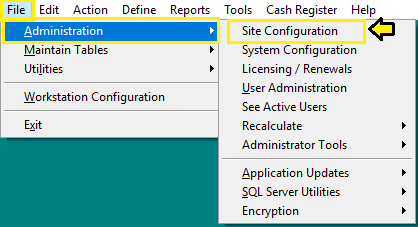
To begin, login to Sportsman and navigate to File>Administration>Site
Configuration.
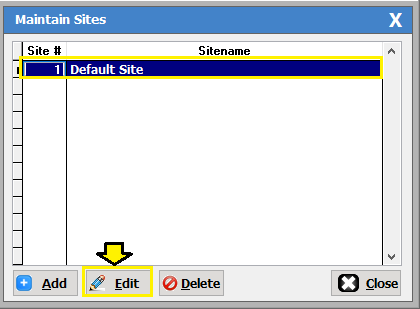
Select your site and click [Edit].
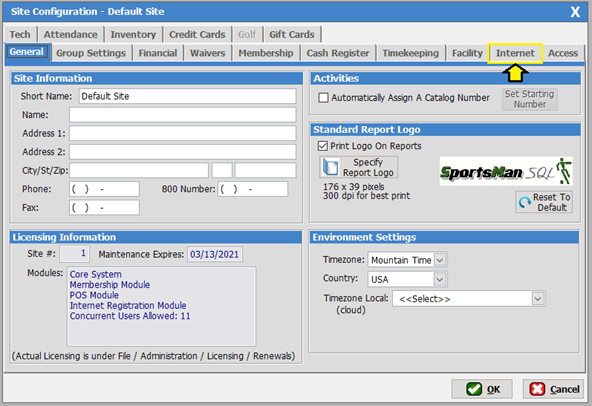
You
will be presented with the Site Configuration screen.
Select the Internet tab at the top.
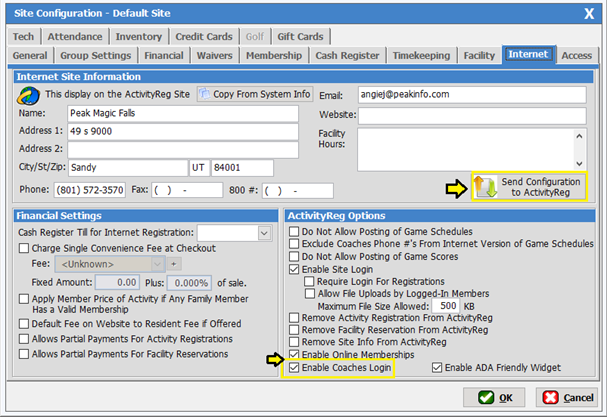
Next, select the check box “Enable Coaches Login”
After the box is checked, select the button “Send Configuration to Activityreg”.
When the configuration is sent the screen will
close.
Assigning a Coach to a Class or Activity
Note: You must have a
coach assigned to a class or league for that class to show up on Coach
Login.
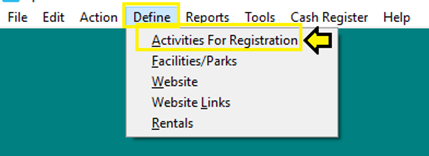
From the Sportsman menu go to Define>Activities for
Registration.
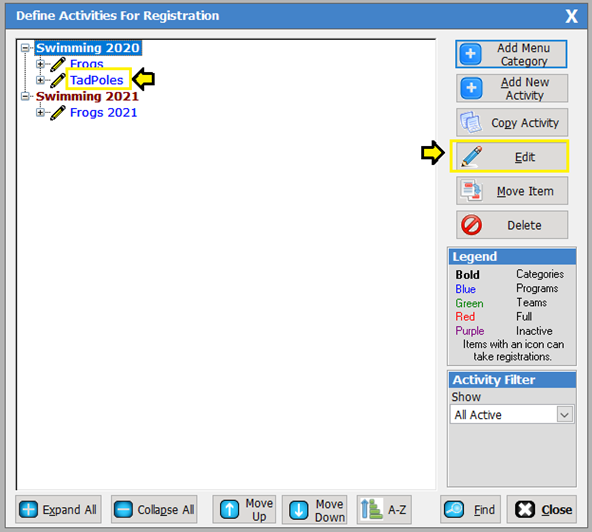
Select the class/league and click [Edit].
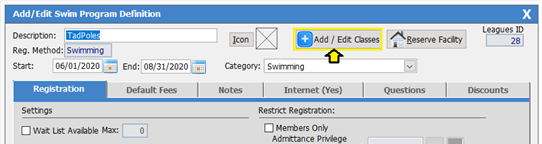
On the next screen, click the [Add/Edit Classes] button near the top.
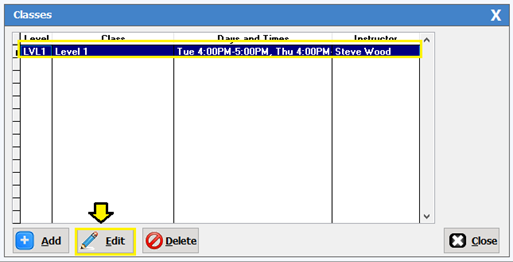
Then select the class from the list and click
the [Edit] button.
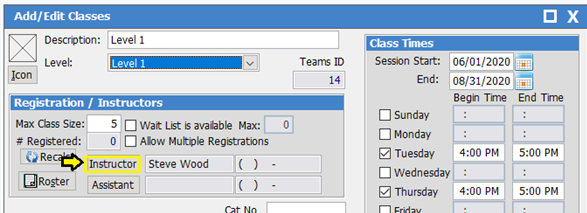
The Add/Edit
Classes screen will populate. Click the [Instructor] button.
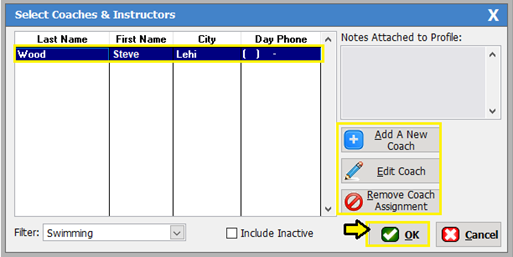
From the Select
Coaches & Instructors screen, you may add a new coach or edit an
existing coach. This is also where you
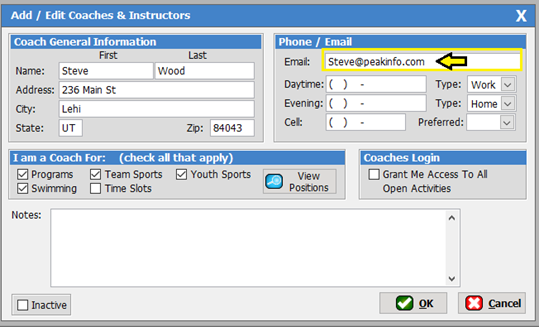
will set permissions to use Coach LogIn. It is required for them to have a valid email
address in their profile. Click [OK] to save your changes
At the bottom of the screen are the various
options for providing access based on the activity type.
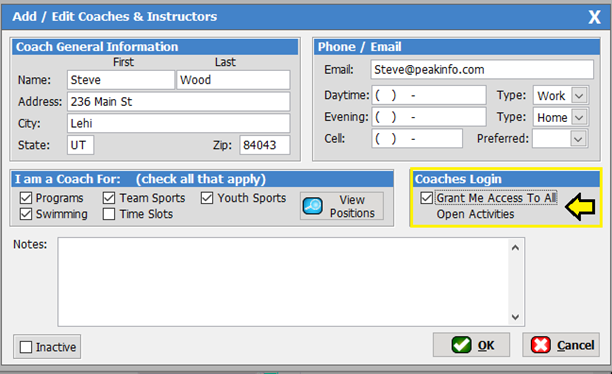
Check the option “Grant Me Access to All Open
Activities” This will provide the coordinator access to all current activities
and information. Unlike the coaches, they do not need to be assigned to any
classes.
After selecting the coach, click the [OK] button, which will take you back to
the “Add/Edit Classes” screen.
Select the Internet Tab, and select the box “Show
on Internet”. This is required for the class to show in the Coach
Login.
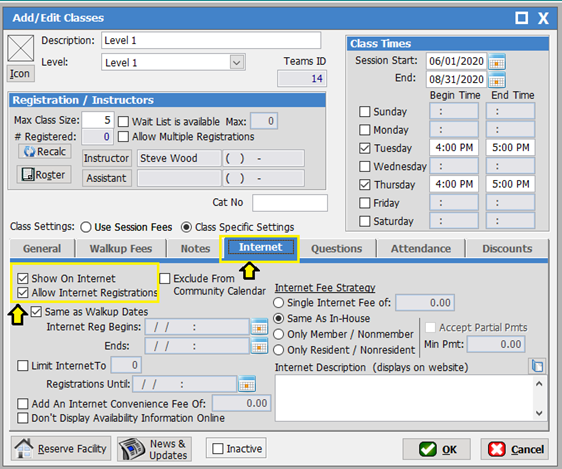
***Note*** Class start and
end dates must be within 30 days (the class/league will auto disappear when
finished)
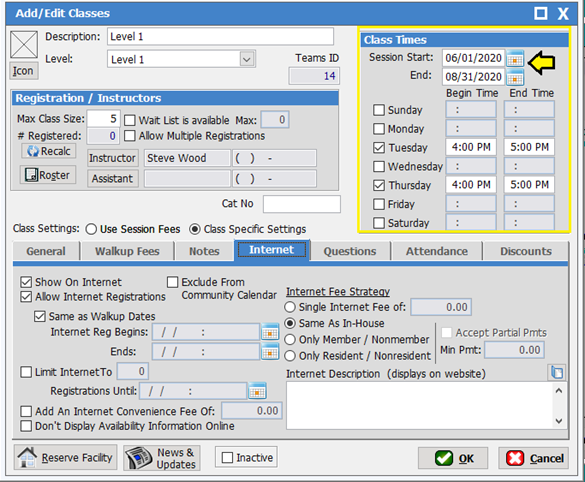
From the same “Add/Edit Classes” screen, check
that the Session Start and End dates are within 30 days. This is required for
the class to show on the coach login. Click “OK”, the required steps are now
complete.
Login to the webpage
To
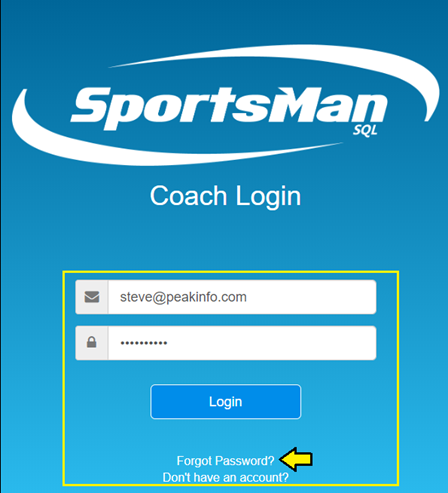
begin go to www. activityreg.com/coachlogin in your web browser. First time coach logs in
requires the coach to enter email address and select “Forgot Password” SportsMan will send a temporary password to the email
address, they will log in with the temporary password and be prompted to change
the password.
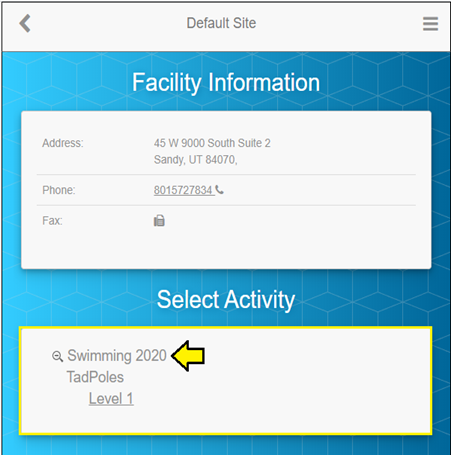
Below is a screen shot of the coordinator
login
SM:DMA:B:APRl21