Assigning
Coaches and Instructors to Activities
In this
document we will walk you through a step-by-step process on how to assign
coaches and instructors to activities. If at any time you find yourself in need
of additional support, please contact our Technical Consultants at support@peakinfo.com or 801-572-3570 option 2.
Prerequisites:
Make sure you have
the rights to define activities and maintain tables.
This Document will go
over:
ü How to add coaches and assistant coaches
to a team
ü How to add an instructor to a Time-slot
activity
ü Logging into Coaches login
Coaches and assistant coaches can be
added to all types of activities in Sportsman.
Adding Coaches/Assistant Coaches to a Team
Coaches may already exist in the
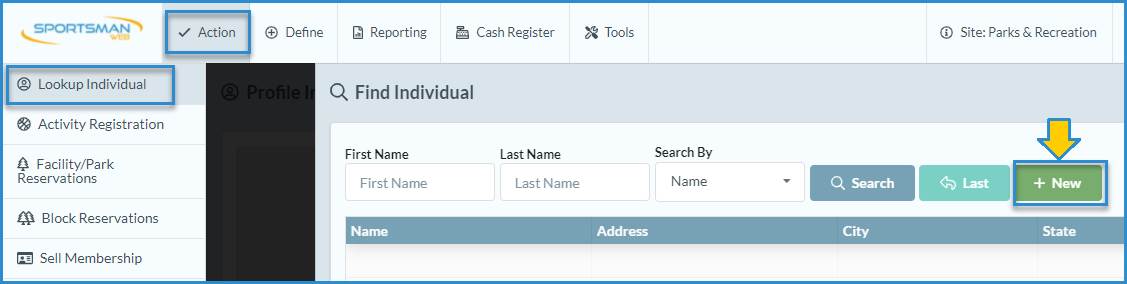
patron/member lists in Sportsman. If they do not, you can add them by clicking
on your [Look Up Individual] quick link button, or navigating to Action
> Lookup Individual and then selecting [New] and filling in their
information. (Coaches must have an email address in the system in order to
access the Coach Login feature or receive any emailed rosters or reports.)
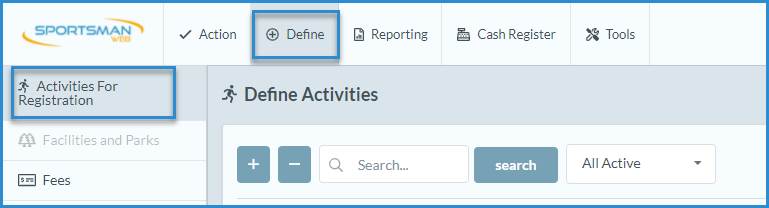
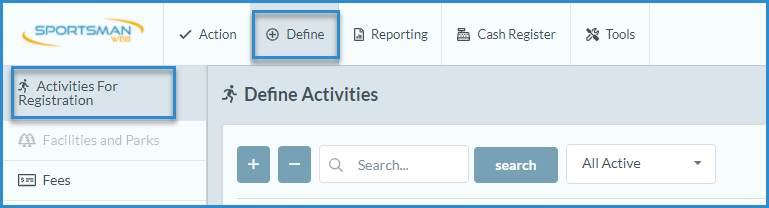
To assign a coach to a team navigate to Define > Activities for Registration
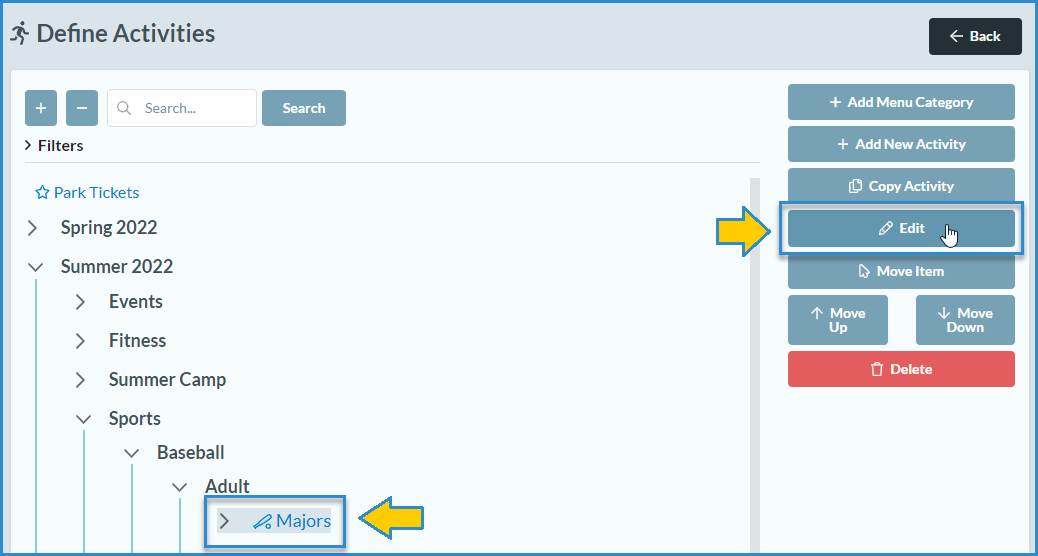
Click on
the activity or team you wish to assign the coach to and click [Edit] button.
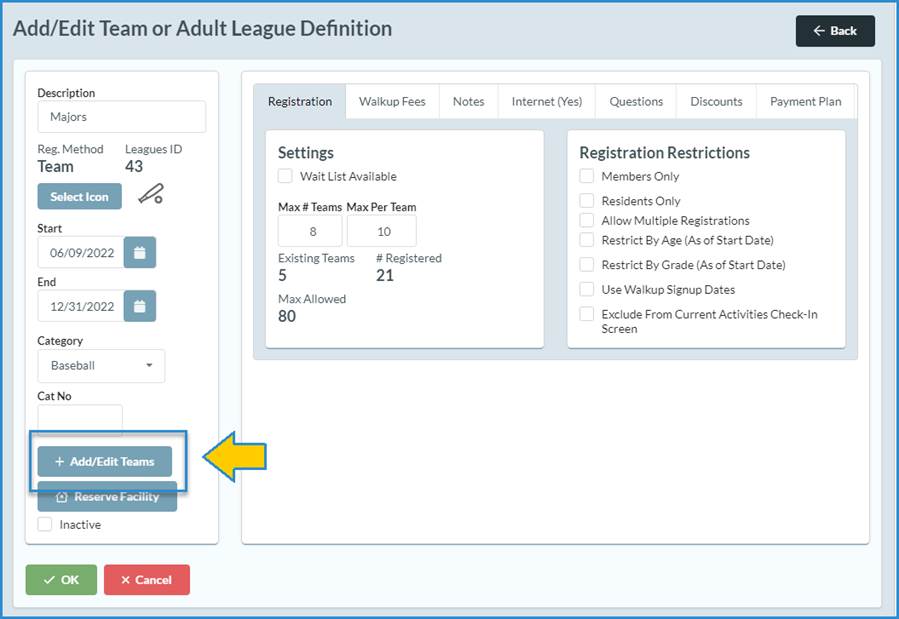
Then click on the [Add/Edit Teams]
button
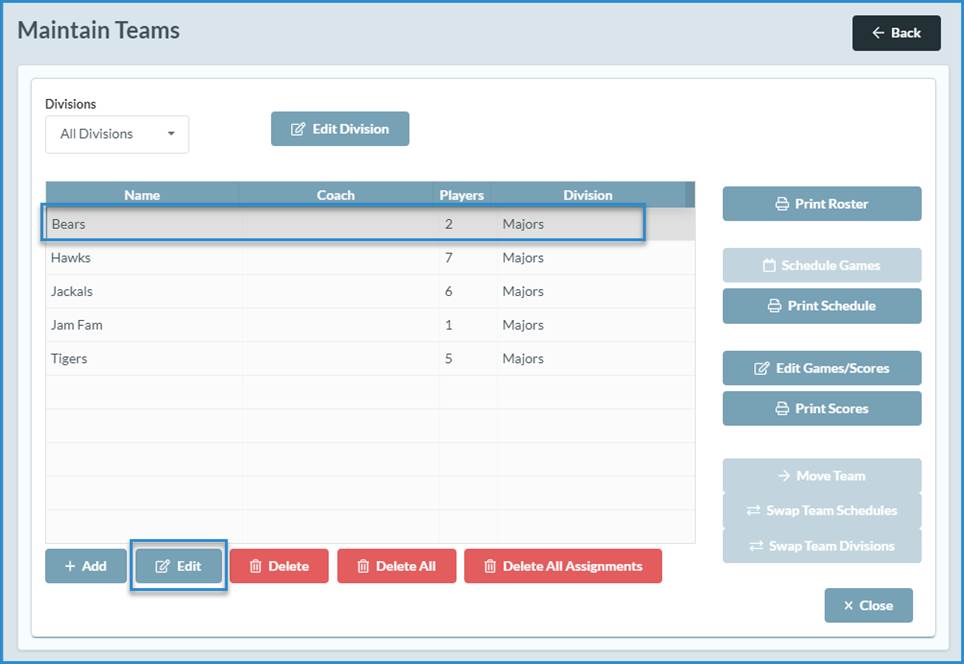
The next step is to select the team
to assign a coach to and click the [Edit] button.
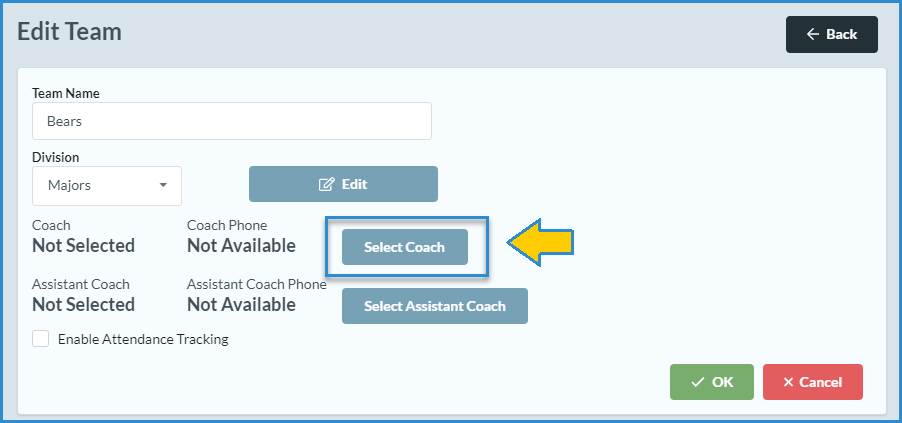
On the Edit Team screen click
on the [Select Coach] button.
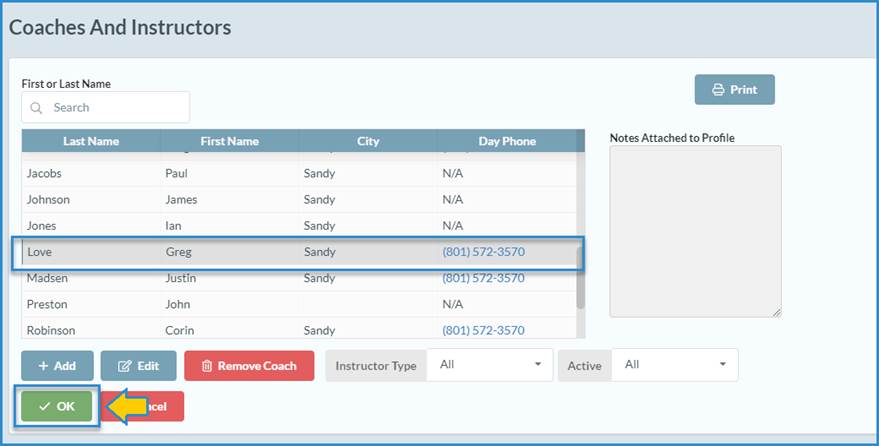
If the coach you would like to assign
is already in the Coaches and Instructors list, simply highlight their name and
click the [OK] button. Note that you can also remove a coach assignment
on this screen. Filters are also available if you have many coaches in your
system.
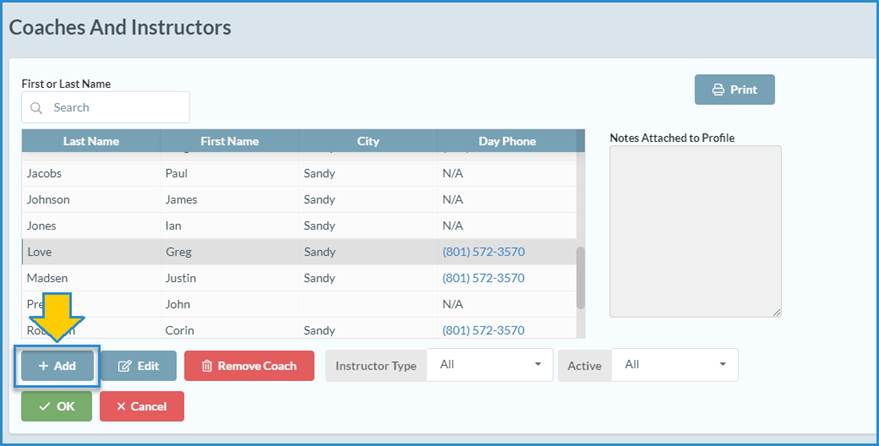
If the coach you would like to assign
is not already in the Coaches and Instructors list, click the [+Add]
button.
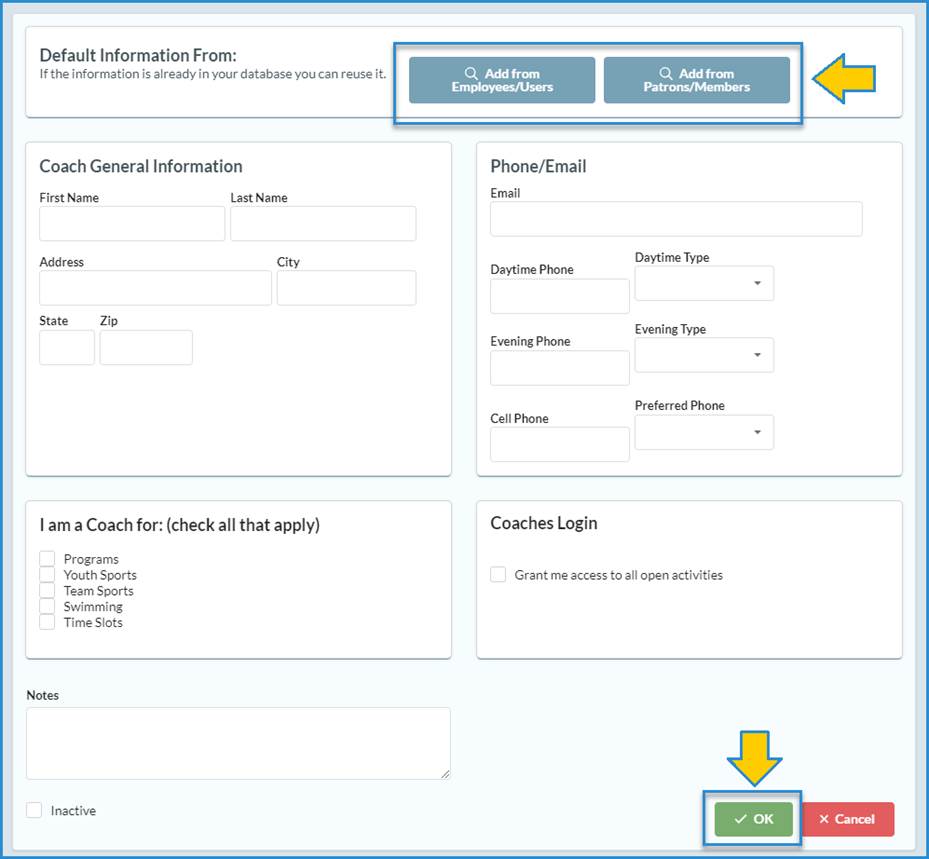
If you need to add a new coach, you
can fill in the information on the ‘Add/Edit Coaches and Instructors’
screen or pull existing facility staff by clicking the [Add from Employees/Users]
button or patrons/members with the [Add from Patrons/Members] button.
Once you have selected your coach or added their information, you will need to
check the type of coach or instructor. (E.g., If the coach does activities and
swimming you would want to select ‘Programs and Swimming’ so they can
see all of the classes they are linked to.)
Adding
instructors to a Time-Slot activity
Similar to adding to a team (above)
you need to edit the definition of the activity by starting at Define> Activities for Registration.
Click on
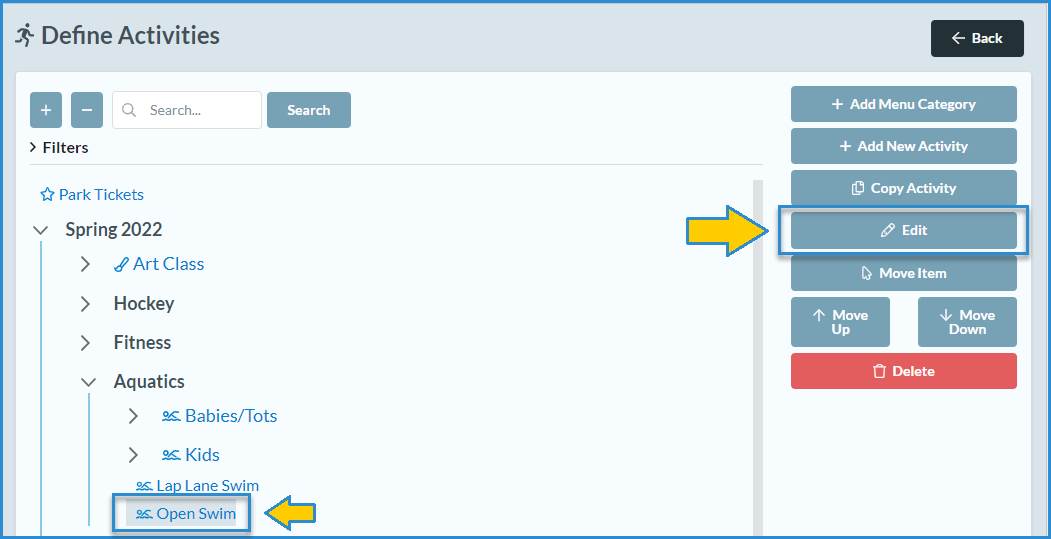
the activity or team you wish to assign the instructor to and click [Edit] button.
On the
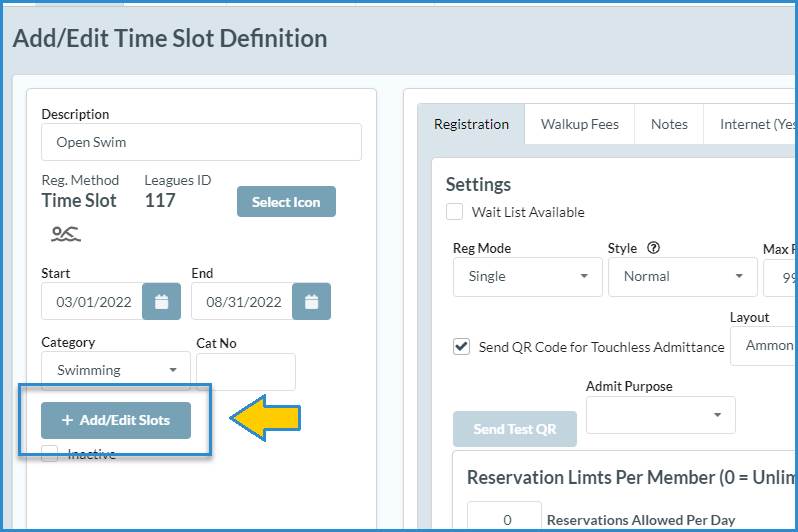
next screen click on the [Add/Edit Time Slots] button.
There are 2 options from here:
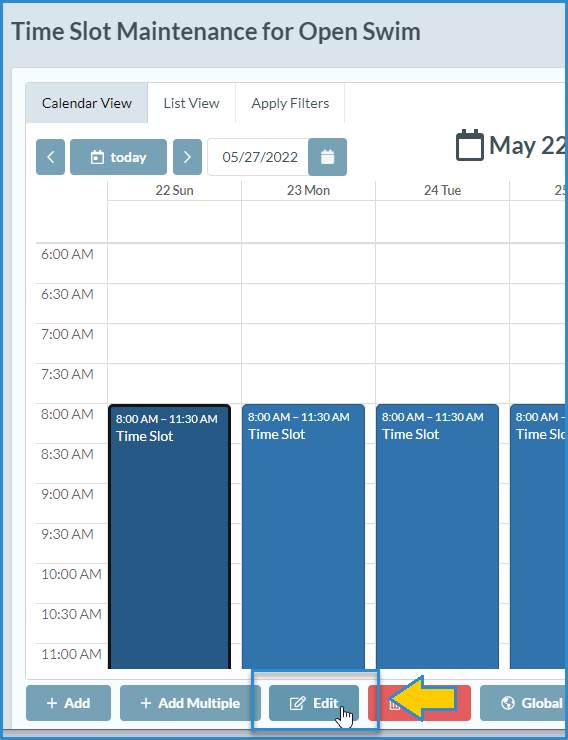
1. To assign an instructor to a single
activity, select that activity in the calendar view (or the List View tab) and
then click on the [Edit] button.
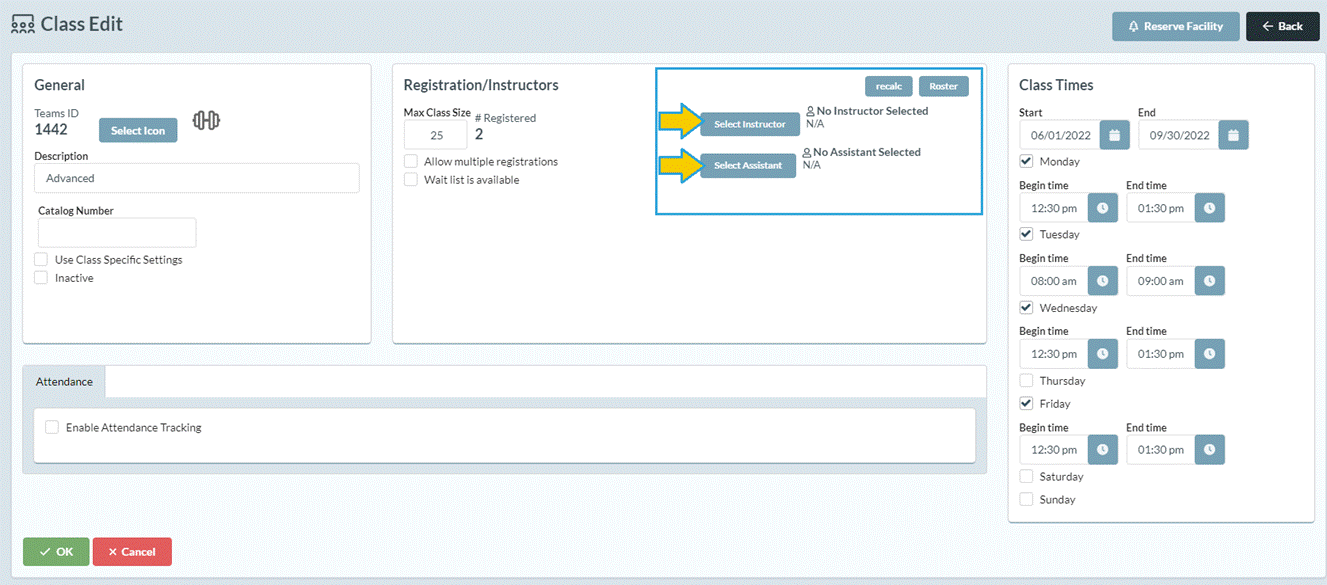
To add an instructor or assistant
instructor to a specific class you can click on the [Select Instructor] button
on the “Class setup screen” Screen.
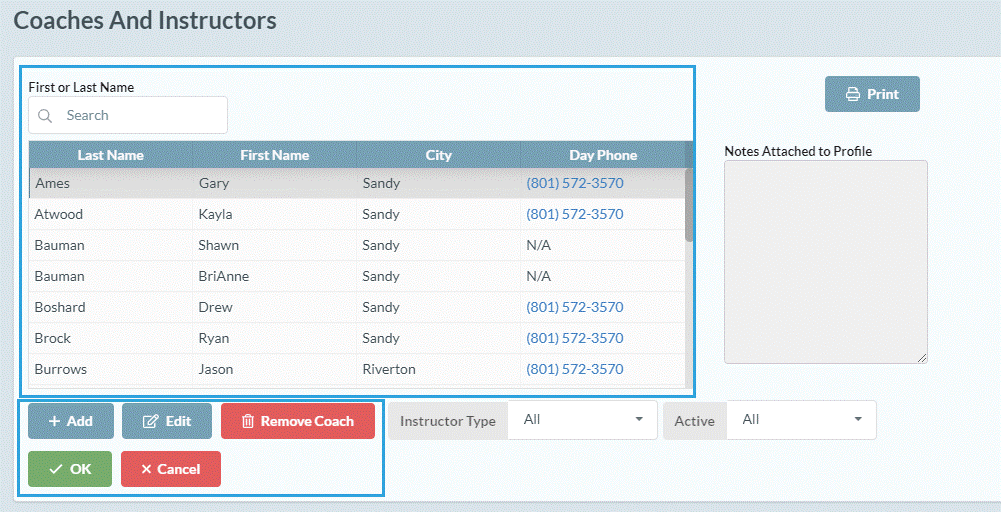
The next step is to choose an
instructor from the existing list or add a new instructor. You will also see
any notes you have for your coaches off to the right.
SM:DMA:M:July22