Managing ActivityReg®
Account Logins in Web
Patrons
who have forgotten their ActivityReg login information have the ability to
request a password reset through your ActivityReg site, or contact you directly
to have their password reset by a member of your staff. This document will
explain the process for both options.
This
Document will go over:
ü Patron
ActivityReg password resets through the website
ü Manual
in-house ActivityReg password resets
Resetting an ActivityReg
password through the patron website
If
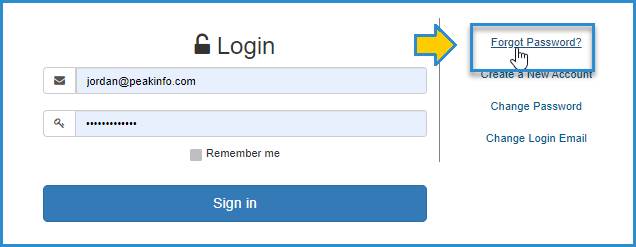
a patron forgets their password to log in to the ActivityReg website they can
request a temporary password be emailed to them through the ActivityReg site. From
the home screen they will navigate to Login > Forgot Password?
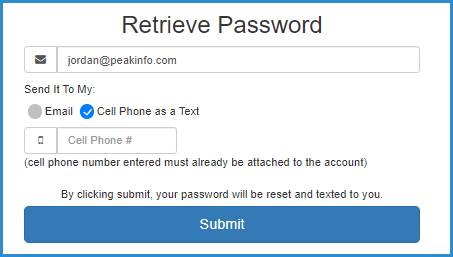
Clicking [Submit] will generate a password reset email or text to be
sent to the patron, and allow them to create a new password.
Manually resetting an
ActivityReg password in Sportsman Web
If
a patron forgets their password to log in to the ActivityReg website they may also
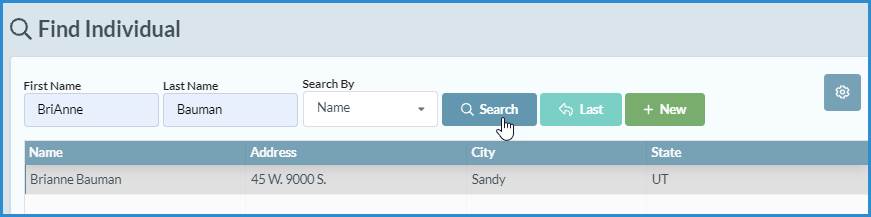
contact your facility, and your team can reset it manually by accessing that
patrons account in the Lookup Individual screen.
In
the patron’s Profile Information screen, click on [Activity Reg Login].
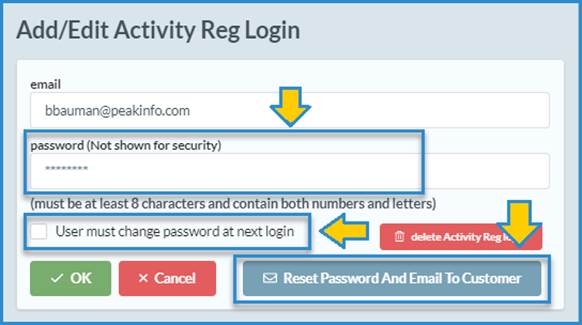
From the Add/Edit Activity Reg Login screen you may choose to manually create a
new password for the patron, or by clicking [Reset Password And Email To Customer] a random password will be
generated and emailed to the customer. Checking the box for User must change
password at next login will allow the patron to login using the newly
created password, and then force them to create another password of their
choosing.
SM:DMA:B:OCT21