Assigning a Membership
in Web
In these instructions we will:
· Learn how to Assign a Membership to an individual or
Family
Special considerations / rights needed to do so:
· Membership Module
This document will cover how to
sell/assign a membership to a patron. There are a few different ways to assign
a membership to a patron within Sportsman the first one we will cover involves
looking up a patron, and assigning a membership from the group listing screen.
To do this Click “LOOK UP” from the start menu in Sportsman, and search for the
patron in the top left.
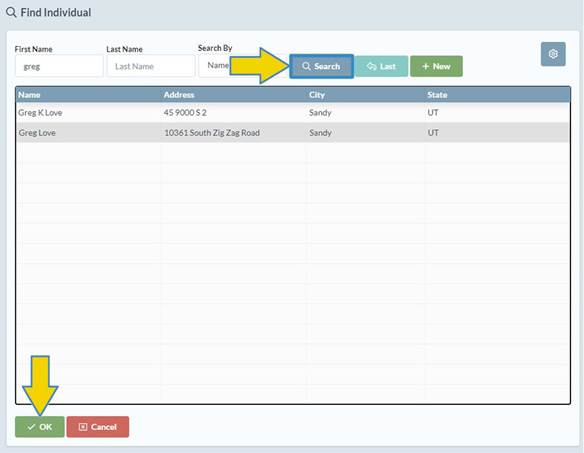
Double Click on the patron or click ok
and you should see this screen.
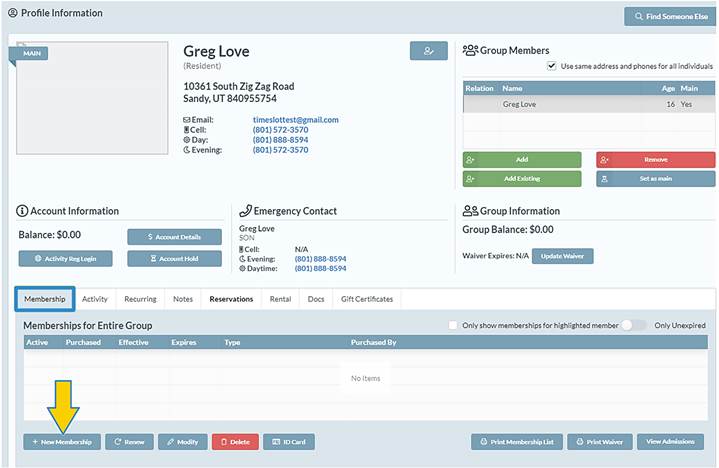
From this screen we can see everyone in
the family group, and we can do many things such as assign a membership. Simply
Highlight who is getting the membership and click the membership tab on the
bottom left. Click “New Membership” and you should see this screen.
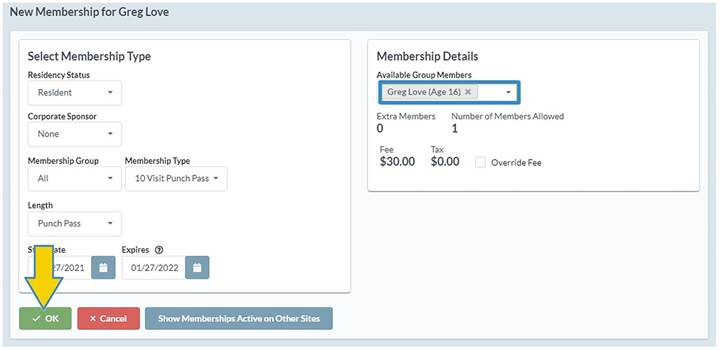
At this point simply choose which
membership type, and make sure who it is covering and fees associated are
correct and click “OK”
Tip: At this point make sure the
membership length type is correct are they purchasing an annual or monthly
membership? Etc.…
After pressing “OK” SportsMan
will ask if you would like to check out at the cash register. If you have
additional memberships to sell in the same family click “no” if you don’t click
“yes”
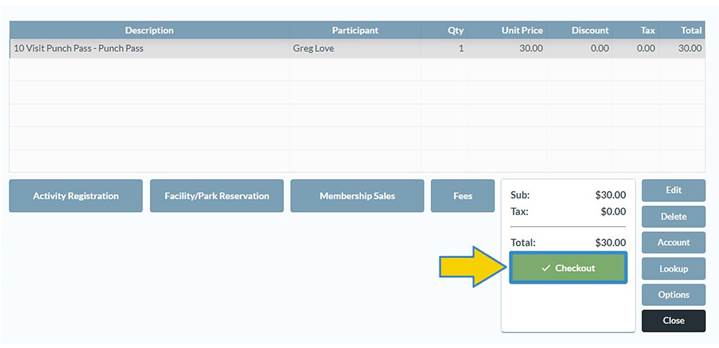
From this screen go ahead and check out as normal.