Card on File (CoF)
Setup and Usage
In an effort to speed up checkouts and
improve safety and efficiency, we are adding the ability to save credit cards
on file for use during transactions in the cash register. This highly requested feature will make it
easy to checkout if the customer has allowed you to keep their card on
file. The card number is not actually
saved in your database so don’t worry.
Instead a PCI industry standard tokenization process is used (has been
for years) so that Sportsman refers to the customer’s card by a unique ID not
at all related to the credit card numbers.
To your front desk, it’s just a list of cards like we’re all used to
from online retailers. Card on file will
provide convenience and touch-free transactions for your patrons, and also be a
great tool for pool concession stands where children can be freed of carrying
cash for that favorite ice cream or slice of pizza. Multiple COFs may be saved for a family group, or for any individual
within a family group.
This document describes setup and
usage of the Card On File (COF) functionality
available for the cash register in the Sportsman desktop application. The
Sportsman Development team has committed to make Card on File programming available
within ActivityReg in the coming months.
When that enhancement is complete your Patrons will be able to add and
manage their credit cards via their log in and select which card to use in the
ActivityReg cash register payment options screen. At this time however, front desk staff will
be entering card numbers and usage options for customers (in person or over the
phone).
.
Prerequisites: You must have Administrative user credentials to enable
Card on File for your Sportsman application.
This Document
will cover:
ü Enabling
Card On File
ü Setting
Up and Editing Card On File for Patrons
ü Using
Card on File with the Application Cash Register
Enabling Card on File
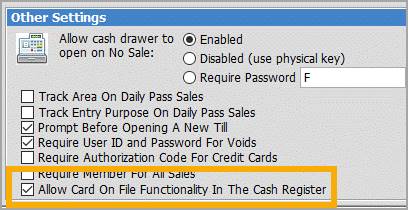
To enable Card On
File for all Cash Registers, go to File>Administration>Site Configuration, select the Cash
Register tab, and check Allow Card
On File Functionality In The Cash Register (under the Other Settings
header).
Setting Up and Editing Card on File for Patrons
Card on File can be set up in the
Patrons profile of the Sportsman Application.
In the future Patrons will be able to add, edit and use Card on File
from their ActivityReg account management area.
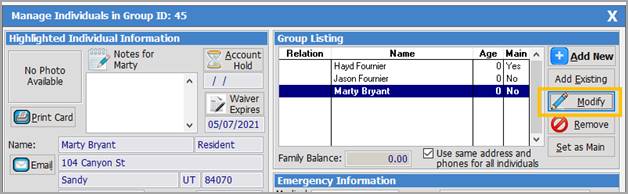
To set up Card On
File for a Patron, select them from the LookUp feature and then click [Modify] on the Manage Individuals screen.
On the Individual Information screen
click on the Discounts/Demographics/Misc tab.
Then click the [View Credit Cards On File]
button.
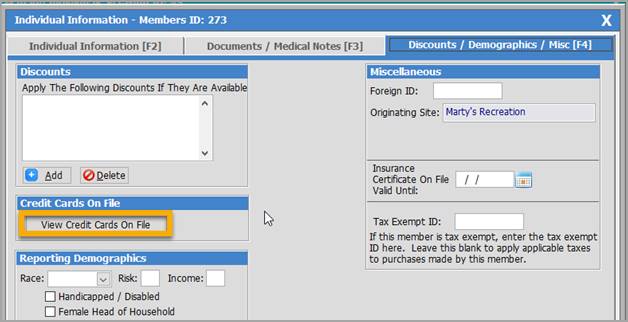
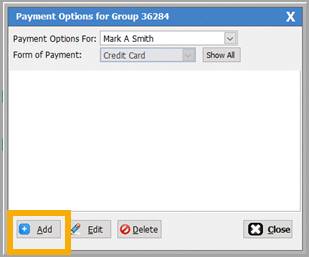
This will take you to the Payment Options screen for the family
group. From here you can choose to see
credit card payment options for any or all family members, or add, edit or
delete a Card On File (COF) payment option.
Click the [Add] button to add a new COF. Notice that the [Edit] button also appears on this screen which allows you to
change card and card holder information.
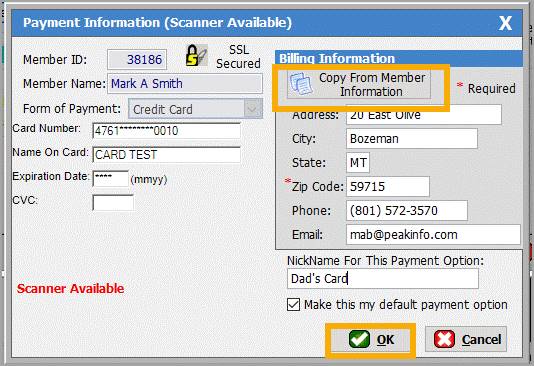
A Payment Information Screen will appear.
The card information
may be entered manually, or a credit card may be scanned if a workstation point
of sale scanner has been configured. Billing information may also be entered
manually, or copied from the current member’s information by clicking the [Copy From Member Information] button. Optionally, you can specify a Nickname for
the card, and specify any single card to be the default Card On File for the
current member.
Card and card holder
information can be edited from the Payment Information screen if you had chosen
[Edit] from the prior screen.
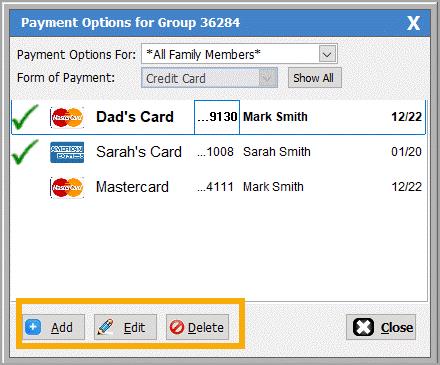
Clicking the[OK] button will save the COF information
for future use and bring up the Payment
Options screen.
From the Payment Options screen you can add
additional cards, delete cards and edit information. Multiple COFs may be saved for a family group,
or for any individual within a family group.
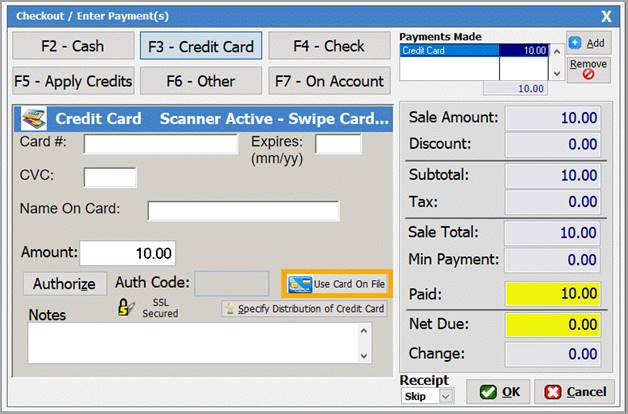
Using Card on File In The Cash Register
When COF is activated, a [Use
Card On File] button will appear on the credit card options in the Payment screen. If it is preferrable to use
COF rather than entering or swiping card information, the cashier may click the
[Use Card On File] button.
Scenario
1 – No Individual Selected Before adding Item to Cash Register
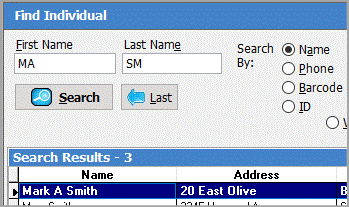
If no individual was pre-selected before adding items to the
cash register, the Find Individual
screen will launch allowing the cashier to select the member making the
purchase.
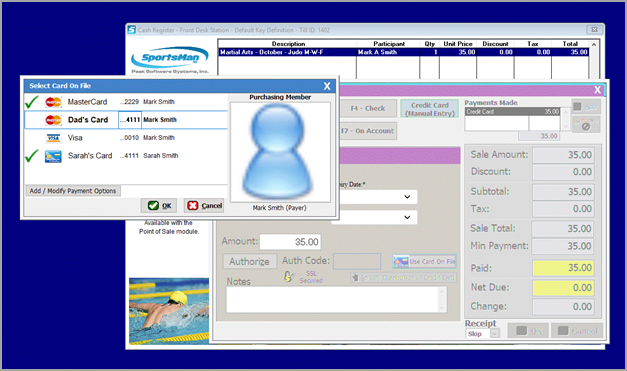
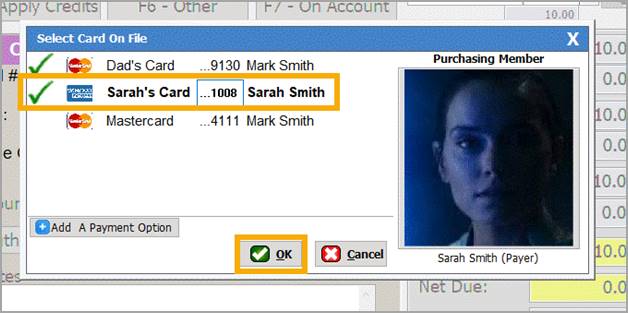
When the purchasing
member has been selected, a Select Card On
File screen is displayed over the Cash Register screen. It lists all COF payment options for the
family, and, if available, a picture of the purchasing member.
The cashier may now
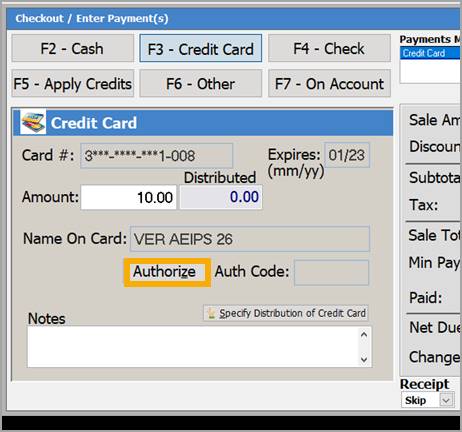
select a card on file with which to charge the purchase, and click [OK]. This will bring back the payment
screen, with the selected card information filled in.
Clicking the [Authorize] button will complete the sale
using the selected COF.
Scenario
2 – Individual is Pre-selected Before Adding an Item to the Cash Register
In cases where the
purchasing member is identified in the cash register, such as activity or
membership purchases, or when a member is manually associated with an item in
the cash register, the Card On File process is fast tracked.
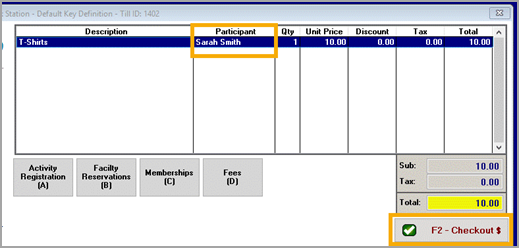
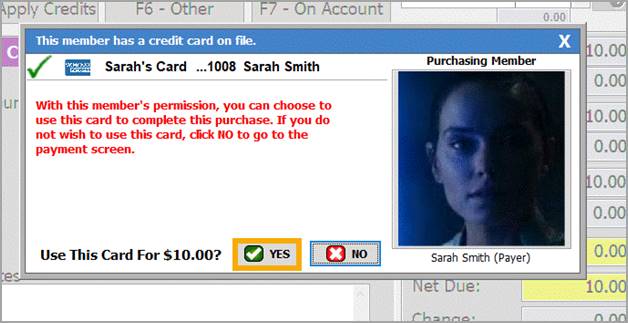
When the [Checkout] button is pressed and the
transaction has an available COF, the Card On
File screen is displayed immediately with the best COF choice for
the purchasing member.
If this is the
payment option the member wishes to use for the transaction, the cashier only
needs to click the [YES] button to
complete the sale using that COF.
If [YES] is selected, the card is charged for
the entire amount and the transaction is completed with a single click!
Selecting [NO] on this option screen will bring the
cashier to the payment screen to select a payment option in the usual manner.
SM:POS:B:June2020